BoxPlot
What is a Boxplot chart?
A Boxplot chart is a visual representation displaying a given statistical data set based on a five-number summary: the minimum, the first quartile (25th percent), the median (second quartile), the third quartile (75th percent), and the maximum. Such charts are extremely useful for comparing distributions of values across categories. The Boxplot is also referred to as box plot, box-and-whisker plot, box-and-whisker diagram.
These charts contain boxes and whiskers (vertical or horizontal lines that extend from the minimum to Quartile 1 and from Quartile 3 to the maximum).
What is a Boxplot used for?
The Boxplots provide a concise and comprehensible summary of potentially large data sets. They serve as a simple way to visualize the statistical distribution and spread of values in your dataset, showing the five-number summary of this data in different boxplot shapes and positions. The Boxplot chart is also used for comparing those values across categories.
Keep in mind that you can create a Boxplot using fewer measures as well. For instance, you can visualize just the minimum, median, and maximum.
Boxplot vs violin chart
Both boxplot and violin charts visualize the distribution of a numeric variable across categories. They answer different questions:
| Boxplot | Violin | |
|---|---|---|
| Shows | Five-number summary (min, Q1, median, Q3, max) | Full probability density (the shape of the distribution) |
| Reveals | Spread, skew, and outliers | Multi-modal distributions, gaps, clustering |
| Input | Raw [min, Q1, median, Q3, max] values | Pre-computed density profile [[value, weight]] |
| Complexity | Low | Higher (requires kernel density estimation beforehand) |
Use a boxplot when your audience is familiar with quartiles and you want a compact, comparable summary across many groups. Use a violin chart when the shape of the distribution matters, for example, when two groups have identical medians and spreads but very different distribution shapes.
In ApexCharts, boxplot uses chart.type: 'boxPlot' and violin uses chart.type: 'violin'.
Boxplot charts vs bar charts
The main difference between Box plot charts and bar charts is that Box plots are useful with ratio/quantitative variables. They deal with medians and quartiles.
Whereas Bar charts and graphs are useful for qualitative/categorical variables. They deal with counts.
In this Boxplot Chart Guide, we will go through the data formats for Boxplot charts. We will also show you how to create a basic boxplot chart with some example code and how to customize it further exploring different options.
BoxPlot Data Format
The data format for boxPlot is slightly different than other charts. ApexCharts assumes that your data is in the [Min, Q1, Median, Q3, Max] format as given in the below example.
xy Format
The xy format accepts [{ x: category/date, y: [min, q1, median, q3, max] }].
chart: { type: "boxPlot" }, series: [{ data: [{ x: "category 1", y: [40, 51.98, 56.29, 59.59, 63.85] }, { x: "category 2", y: [43.66, 44.99, 51.35, 52.95, 59.42] }, . . . { x: "category n", y: [52.76, 57.35, 59.15, 63.03, 67.98] }] }]
Raw Observations
You can also hand the chart the measurements themselves and let it compute the summary. Put them in points and leave y off:
chart: {
  type: 'boxPlot'
},
series: [{
  data: [
    { x: 'Phone', points: [1.2, 1.9, 3.4, 2.2, 2.8, 1.7, 4.1] },
    { x: 'Tablet', points: [2.6, 3.1, 2.9, 3.8, 3.3, 2.4] }
  ]
}]
Quartiles interpolate between ranks (R type 7). This is the same points field the jitter overlay reads, so a sample lives in exactly one place whether you summarize it or the library does.
Deriving the summary requires the optional stats feature, which the default apexcharts bundle already includes. See tree-shaking if you import by module.

Where the Whiskers Reach
plotOptions.boxPlot.whiskers only applies when the summary is derived. A precomputed five-number y is drawn exactly as given.
plotOptions: {
  boxPlot: {
    whiskers: 'tukey'
  }
}
'minmax' (default) reaches the extremes, so nothing is hidden. 'tukey' stops at the last observation within 1.5 × IQR of each quartile. Points beyond that fence then fall outside the whisker, so pair it with points.show: true or they become invisible.
The Summary Is Not the Sample
A box plot reduces a group to five numbers, so very differently shaped distributions can produce an identical box. That is the reason to keep the observations available: overlay them as jitter, or switch to a violin or histogram to see the shape the summary discarded.

Customizing the colors of boxPlot
Boxplot Interquartile Range Color
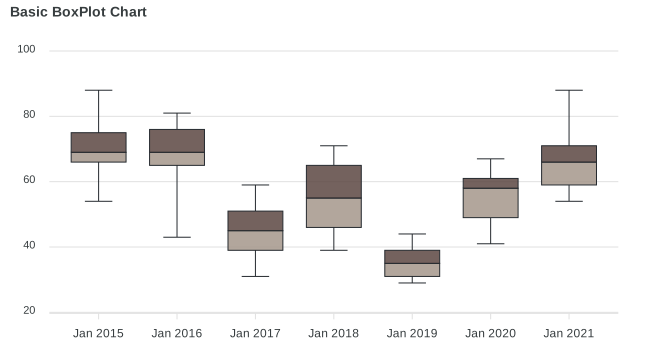
By default, the upward quartile has a green color and the downward quartile has a blue color. You can change these colors by setting the below options
plotOptions: {
  boxPlot: {
    colors: {
      upper: '#5C4742',
      lower: '#A5978B'
    }
  }
}
The above color setting will produce the following result
Horizontal BoxPlot
The boxplot can be rendered horizontally just by changing a single property.
plotOptions: {
  bar: {
    horizontal: true
  }
}
An example of a horizontal box-plot chart.

Adding scatter series as outliers
If you need to add outliers to the boxplot, you will need to do that via another series as scatter chart-type. The below code gives an illustration of what might the code look like.
chart: {
  type: 'boxPlot'
},
series: [{
  type: 'boxPlot'
  data: [...],
}, {
  type: 'scatter',
  data: [...]
}]
An example of a box-plot chart with outliers.
