Column Chart
What is a column chart?
A Column Chart is a vertical graphical representation of different data categories. It visualizes measured values in rectangular columns or bars plotted along two axes. In general, Column Graphs and Charts are generally used for displaying statistical comparisons between categories of data over time.
In this Column Chart guide, we will go through the configuration and options to plot different kinds of column graphs.
When to use a column chart
Use a column chart when:
- The x-axis is time (years, quarters, months) — vertical columns read naturally left to right with time.
- You are comparing values across a small number of categories (up to ~12).
- You want to show stacked contributions (stacked column chart).
Column chart vs bar chart
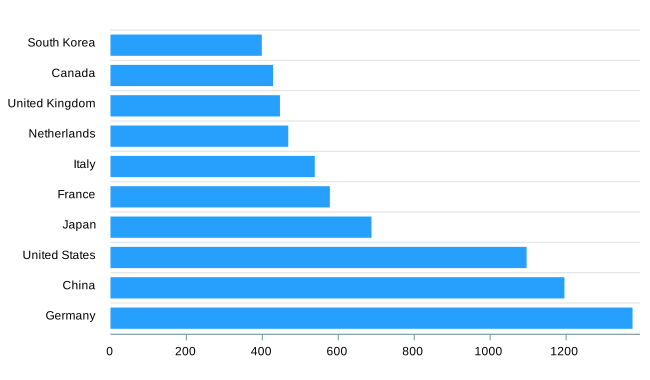
A column chart is vertical; a bar chart is horizontal. Both use chart.type: 'bar' in ApexCharts. Set plotOptions.bar.horizontal: true for a horizontal bar chart; omit it for a vertical column chart.
Prefer a column chart when the x-axis is temporal or ordered. Prefer a bar chart when category labels are long or when comparing a large number of items ranked by value.
Data Format
The data format for a column chart is the same as for the other XY charts. You need to provide your data in the series array in chart options. More information about how to build the series can be found at Working with data page.
How to Make a Column Chart?
There are several types of column charts you can create – basic column chart, stacked column chart, distributed chart, and reversed chart.
Basic Column Chart
To create a basic JavaScript column chart, the most important properties are the chart.type described as below
options = {
  chart: {
    type: 'bar'
  },
  series: [{
    data: [{
      x: 'category A',
      y: 10
    }, {
      x: 'category B',
      y: 18
    }, {
      x: 'category C',
      y: 13
    }]
  }]
}
A simple example of a basic Column Chart
Adding markers
Markers on a column chart are useful for comparisons or they can be helpful in providing additional information related to the particular data-point.
Note: Markers don't work with stacked charts
{
  x: 'Category A',
  y: 54,
  goals: [
    {
      name: 'Expected',
      value: 52,
      strokeColor: '#775DD0'
    }
  ]
}

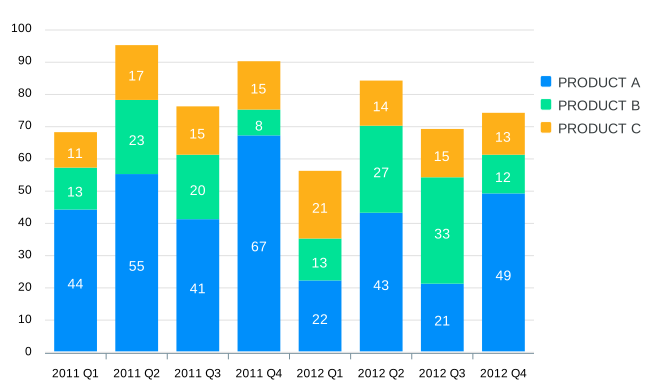
Stacked Column Charts
There are 2 variants of stacked column charts.
Normal Stacked Column Charts
The columns are stacked on top of each other based on their values.
chart: {
  stacked: true
}
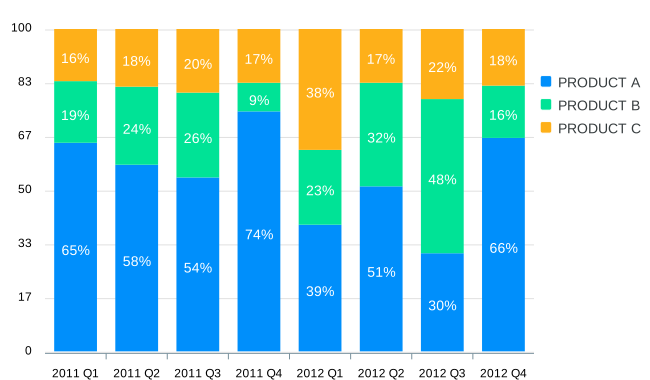
100% Stacked Column Charts
The columns are stacked on top of each other based on their percentage or weightage among the groups.
chart: {
  stacked: true,
  stackType: "100%"
}
Changing the border-radius
You can control the border radius of a column chart by setting the following configuration.
options = {
  plotOptions: {
    bar: {
      borderRadius: 10
    }
  }
}
A full example of a column chart with border-radius
Changing the color of a particular data-point
Oftentimes, we need to distinguish or highlight a certain data point from the rest of the data. In such cases, we can inject the colors for that data point when we build the series. Below is an example
series: [{
  data: [{
    {
      x: 'Category A',
      y: 6653
    }, {
      x: 'Category B',
      y: 8133,
      fillColor: '#EB8C87',
      strokeColor: '#C23829'
    }, {
      x: 'Category C',
      y: 7132
    }
  }]
}]
Distributed Chart
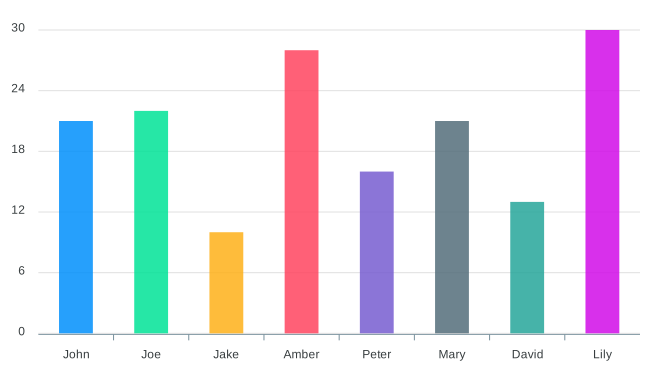
A distributed column chart means all the columns in the chart will have different colors.
options = {
  plotOptions: {
    bar: {
      distributed: true
    }
  }
}
yaxis: {
  reversed: true
}
Reversed Chart
A reversed column chart is a mirrored chart that goes from top to bottom instead of top to bottom. The following configuration of the y-axis will make an up-side-down graph.
yaxis: {
  reversed: true
}
When to Use a Column Chart?
There are several common use cases for column charts and graphs. For example, they are extremely useful when you want to:
- Compare data from several related categories.
- Understand how variables change over time.
- Evaluate performance against target-line data.
- Compare business data such as performance from various departments and teams or sales of different product categories for a given period of time.
- To draw and compare business statistics and financial data.
Related Chart Types
Check out the related chart types guide to learn more about integrating different types of graphs available in ApexCharts.
[
Bar Chart Guide
](/docs/chart-types/bar-chart/)[
Range-Bar Chart Guide
](/docs/chart-types/range-bar-chart/)[
BoxPlot Chart Guide
](/docs/chart-types/boxplot/)