Area Chart
What is an Area Chart?
With their mountain-like appearance, Area Charts are used to represent quantitative variations. Be it examining the variation in the population of a tribe or determining the average performance of the students. Area charts differ from line charts because the area bounded by the plotted data points is filled with shades or colors.
In this area chart guide, we will go through the configuration and options to plot different kinds of area graphs available in ApexCharts.
When to use an area chart
Use an area chart when:
- You have one or two series and want to convey volume, mass, or cumulative quantity visually.
- The filled region itself is part of the message: total downloads, revenue band, temperature range.
- You are showing a range between two values (range area chart).
Avoid an area chart when you have three or more series. Filled areas overlap and create visual noise that a line chart handles better by removing the fill.
Area chart vs line chart
The underlying data and configuration are identical. The only difference is that an area chart fills the space between the plotted line and the zero baseline. When multiple series are stacked, area charts can show cumulative totals effectively. When series cross each other, the fill creates visual confusion. Switch to a line chart by changing chart.type: 'area' to chart.type: 'line'.
Data Format
The data format for the area chart is the same as for the other XY plots. You will need to provide the data in the series array in chart options. More information about how to build the series can be found at Working with data page.
Variants of Area Charts
Spline Area Charts
In a Spline area chart, the data-points are connected by smooth curves.
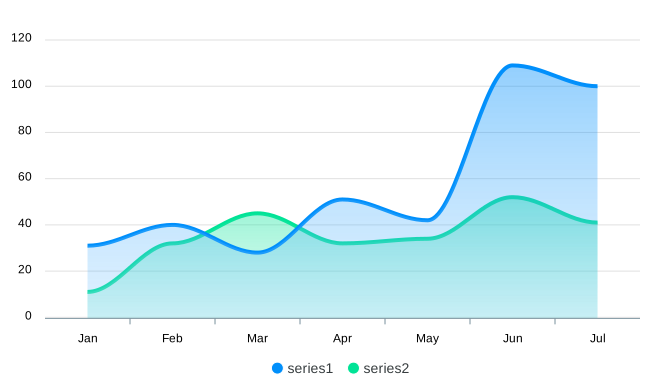
To draw such a smooth curve, you have to set the following option
stroke: {
  curve: 'smooth',
}
Straight
Connect the data-points in a straight line and not apply any curve to the line.
stroke: {
  curve: 'straight',
}
Stepline
In a step-line area chart, points are connected by horizontal and vertical line segments, looking like steps of a staircase and the area is filled with color.

stroke: {
  curve: 'stepline',
}
Stacked Area Chart
Stacked area charts work in the same way as simple area charts do, except that the start of each data-point continues from the point left by the previous data series.
To enable stacking of a chart, you should set the following configuration
chart: {
    stacked: true
}
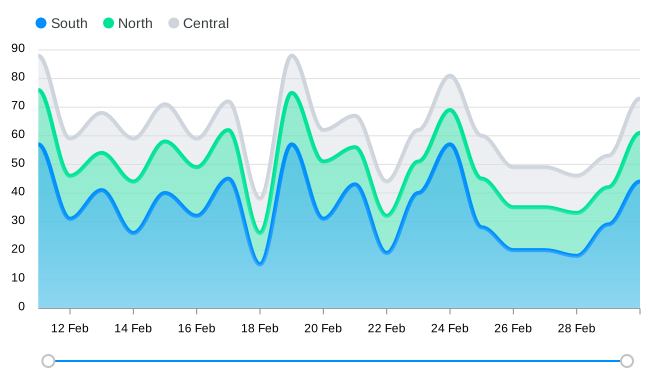
View the full example of a Stacked Area Chart.
Using area in a combo chart
With ApexCharts, you can plot area series with other chart types. The below examples give an idea of how an area series can be combined with other chart types to create a mixed/combo chart.
You have to specify the type in the series array when building a combo chart like this.
series: [{ type: 'area', data: [...] }, { type: 'column', data: [...] }]
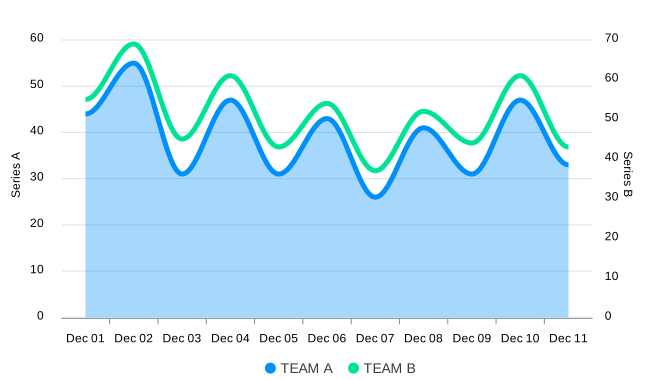
You can check out the code for the above example on the combo chart demo.
Plotting an area time-series
A time-series graph is a data viz tool that plots data values at progressive intervals of time. With ApexCharts, a time-series is created if you provide timestamp values in the series as shown below and set xaxis.type to 'datetime'.
series: [{
  data: [{
    x: new Date('2018-02-12').getTime(),
    y: 76
  }, {
    x: new Date('2018-02-12').getTime(),
    y: 76
  }]
}],
xaxis: {
  type: 'datetime'
}
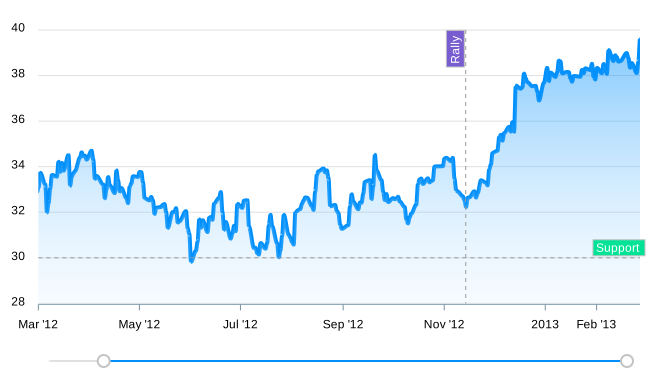 View the full demo at Area Time-series demo.
Styling Area Charts
With ApexCharts, you can give your desired look to your area graphs and enhance the look of your dashboard design. We will go through options like setting colors of the lines, changing colors of the filled area, changing opacity as well as using different filling methods to fill the SVG paths.
Line width
Changing the width of the line is easy.
stroke: {
width: 2
}
Customizing the filled area
To change the color of the filled area in your graphs, you just have to modify the [colors](/docs/options/colors) property in the configuration.
colors: ['#2E93fA', '#66DA26', '#546E7A', '#E91E63', '#FF9800'];
Fill types
Configure the SVG paths by specifying whether to fill the paths with solid colors or gradient or pattern.
fill: {
  type: 'gradient' / 'solid' / 'pattern' / 'image'
}
More information on how to configure the path filling can be found at [fill](/docs/options/fill/#filltype) options.
Advanced Example
The demo below shows an advanced example of an area chart combined with a brush chart. The brush chart in this example acts as a control through which the user can navigate the other chart.
More examples
You can view more samples of the area chart in the area chart demos.