React Charts
Using ApexCharts to create charts in React.js
React-ApexCharts is a wrapper component for ApexCharts ready to be integrated into your react.js application to create stunning React Charts. In this post, you will learn how to use React-ApexCharts component to create various charts in your react.js application with ease.
Install
Install the React-ApexCharts component in your React application from npm
npm install --save react-apexcharts apexcharts
If you need to directly include script in your html, use the following cdn links
<script src="https://cdn.jsdelivr.net/npm/apexcharts"></script>
<script src="https://cdn.jsdelivr.net/npm/react-apexcharts"></script>
A chart type or feature outside the default bundle is one more script tag after the ApexCharts one, for example https://cdn.jsdelivr.net/npm/apexcharts/dist/sunburst.js. The list is below.
Version compatibility
| react-apexcharts | React | ApexCharts |
|---|---|---|
| 2.1.x | 16.8+ | 5.10.1 or newer, including 8.x |
The apexcharts peer range (>=5.10.1 in 2.1.1, the current release) is an open lower bound rather than a pinned major, so upgrading ApexCharts does not require a wrapper release. react-apexcharts 2.1.x installs next to ApexCharts 7 or 8 as it is. What 8.0 changes is which chart types come with the default bundle, covered below.
React 16.8 is the floor because the component is built on hooks (useRef and useEffect).
Chart types and features outside the default bundle
react-apexcharts draws with the default apexcharts bundle. Since 8.0 that bundle leaves out three chart types and four features. Each one is a side-effect import next to the wrapper, in any module that loads before the chart renders:
import Chart from "react-apexcharts";
import "apexcharts/sunburst";

const series = [
  {
    data: [
      { x: "Mobile", y: 55, children: [{ x: "iOS", y: 30 }, { x: "Android", y: 25 }] },
      { x: "Desktop", y: 33, children: [{ x: "Windows", y: 20 }, { x: "macOS", y: 13 }] },
    ],
  },
];

export default function TrafficSunburst() {
  return <Chart type="sunburst" series={series} options={{}} height={400} />;
}
| Left the default bundle in 8.0 | Import next to react-apexcharts | Script tag file |
|---|---|---|
| unit (with waffle and beeswarm) | apexcharts/unit | dist/unit.js |
| sunburst | apexcharts/sunburst | dist/sunburst.js |
| violin | apexcharts/violin | dist/violin.js |
| drilldown | apexcharts/features/drilldown | dist/features/drilldown.js |
| waterfall | apexcharts/features/waterfall | dist/features/waterfall.js |
| dumbbell | apexcharts/features/dumbbell | dist/features/dumbbell.js |
| streamgraph | apexcharts/features/streamgraph | dist/features/streamgraph.js |
Use apexcharts/features/waterfall (and the dumbbell and streamgraph equivalents), not apexcharts/waterfall: that entry is for the lean core and brings a second bar renderer.
The import registers the type for every chart in the app, so one place is enough. If it is missing, the browser console names the line to add, and a chart whose type is missing draws nothing. To skip the choice, import "apexcharts/full" once registers every chart type and feature. Icicle, raincloud and the features that were opt-in before 8.0 work the same way; the tree-shaking guide lists them. One change for script tags: raincloud now takes two files, dist/violin.js and then dist/features/raincloud.js. In a bundler it is still import "apexcharts/raincloud".
With react-apexcharts/server, which renders through apexcharts/ssr, the same import goes in the Server Component file. The Next.js guide shows the client and server setups.
Props
Here are the basic props you can pass to the the React-ApexCharts component
| Prop | Description | Type | Default |
| type | The chart type which is a mandatory prop to specify | String | 'line' |
| series | The data which you want to display in the chart | Array | undefined |
| width | Width of the chart | String || Number | '100%' |
| height | Height of the chart | String || Number | 'auto' |
| options | All the optional configuration of the chart goes in this property | Object |
Usage
Once you have installed the library, you are ready to create a basic bar chart in react.js. So, let's get started.
import React, { Component } from "react";
import Chart from "react-apexcharts";

class App extends Component {
  constructor(props) {
    super(props);

    this.state = {
      options: {
        chart: {
          id: "basic-bar"
        },
        xaxis: {
          categories: [1991, 1992, 1993, 1994, 1995, 1996, 1997, 1998, 1999]
        }
      },
      series: [
        {
          name: "series-1",
          data: [30, 40, 45, 50, 49, 60, 70, 91]
        }
      ]
    };
  }

  render() {
    return (
      <div className="app">
        <div className="row">
          <div className="mixed-chart">
            <Chart
              options={this.state.options}
              series={this.state.series}
              type="bar"
              width="500"
            />
          </div>
        </div>
      </div>
    );
  }
}

export default App;
As you can see in the above template, the ApexCharts Component holds 4 props. Each prop is described in detail at the bottom of the post. For now, let's jump to the JavaScript part. In the first example, we will start with a very basic bar chart.
import React, { Component } from "react";
import Chart from "react-apexcharts";

class App extends Component {
  constructor(props) {
    super(props);

    this.state = {
      options: {
        chart: {
          id: "basic-bar"
        },
        xaxis: {
          categories: [1991, 1992, 1993, 1994, 1995, 1996, 1997, 1998]
        }
      },
      series: [
        {
          name: "series-1",
          data: [30, 40, 45, 50, 49, 60, 70, 91]
        }
      ]
    };
  }

  render() {
    return (
      <div className="app">
        <div className="row">
          <div className="mixed-chart">
            <Chart
              options={this.state.options}
              series={this.state.series}
              type="bar"
              width="500"
            />
          </div>
        </div>
      </div>
    );
  }
}

export default App;
This will render the following chart. To read more about the options you can configure in a bar chart, check out this plotOptions.bar configuration. 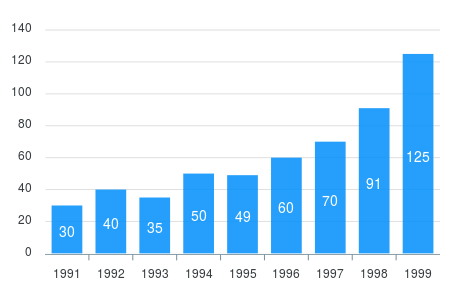 Next, we create a simple line chart. To do so, just change the
 type property in the component props
Line Chart
  <Chart
    options={this.state.options}
    series={this.state.series}
    type="line"
    width="500"
  />
This will generate the following line chart. 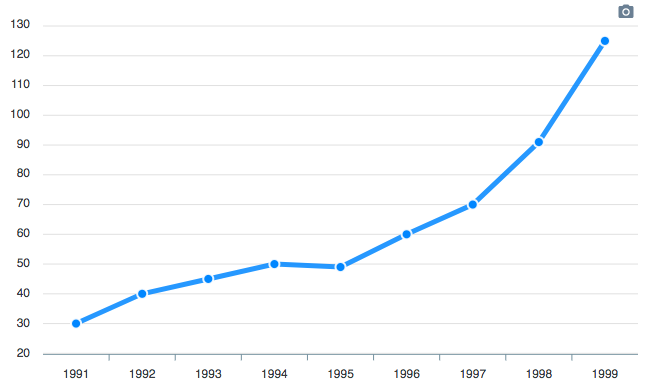 To read more about the options you can configure in a line chart, check out this plotOptions.line configuration. Now, we will create a donut chart with minimal configuration. To do so, change some of the options
Donut Chart
The donut chart accepts a single dimensional series array unlike other chart types. Try the below code.
import React, { Component } from 'react';
import Chart from 'react-apexcharts'

class Donut extends Component {

  constructor(props) {
    super(props);

    this.state = {
      options: {},
      series: [44, 55, 41, 17, 15],
      labels: ['A', 'B', 'C', 'D', 'E']
    }
  }

  render() {

    return (
      <div className="donut">
        <Chart options={this.state.options} series={this.state.series} type="donut" width="380" />
      </div>
    );
  }
}

export default Donut;
And this is how the rendered donut chart will look like with the help of the above code. 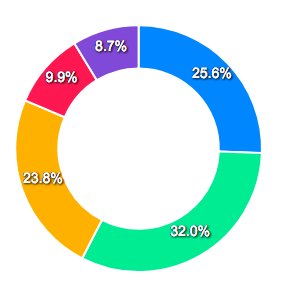 In the next section, we will see how we can update the rendered chart dynamically
Updating React Chart Data
Updating your React chart data is simple. You just have to update the series prop and it will automatically trigger event to update the chart. We will see an example below updating the chart data with some random series to illustrate the point.
const newSeries = [];

this.state.series.map((s) => {
  const data = s.data.map(() => {
    return Math.floor(Math.random() * (180 - min + 1)) + min
  })
  newSeries.push({ data, name: s.name })
})

this.setState({
  series: newSeries
})
As you can see in the example above, by just changing the props, we trigger the update event of ApexCharts. Edit on CodeSandbox
More Charts Examples?
There are several other charts which can be created by changing a couple of options. The major configuration has to be done in the options property of ApexCharts component and rest will fall into places.
Need Advanced Chart Features?
We have partnered with Infragistics to grant you access to an extensive library of data visualizations that enables stunning and interactive React charts for your web and mobile apps. The comprehensive React charts deliver customizable features like animations, highlighting, annotations, drill-down, multiple layers, tooltips, and lots more. All with an intuitive API, flexible theming and branding, and minimal code to get started!
We know that your React charts shouldn’t just deliver fast performance. They should include all the functionalities your users need, providing UX that keeps the app ahead of your competition. With Ignite UI for React charts, you are empowered to create expressive dashboards, apply deep analytics, and render millions of data points in a matter of seconds. Browse through 65+ customizable React chart types and see which one best fits your project. Included are common business charts like Pie charts, Line, Column, Area, and the most asked for Financial charts.