Vue Charts
Using ApexCharts to create charts in Vue.js
Vue.js framework's attention on the view layer takes into consideration simple integration with different libraries as well. And that's why today we will see how ApexChart integrates into the Vue.js ecosystem.
Vue-ApexCharts is a wrapper component for ApexCharts ready to be integrated into your vue.js application to create stunning Vue Charts.
In this post, you will learn how to use Vue-ApexCharts component to create various charts in your vue.js application with ease.
Install
Install the Vue-ApexCharts component in your Vue 2.0 application from npm
npm install --save apexcharts
npm install --save vue-apexcharts
Usage
import VueApexCharts from 'vue-apexcharts'
Vue.use(VueApexCharts)

Vue.component('apexchart', VueApexCharts)
Note: If you are using Vue 3, then you should do
npm install --save apexcharts
npm install --save vue3-apexcharts
import VueApexCharts from "vue3-apexcharts";

const app = createApp(App);
app.use(VueApexCharts);
// The app.use(VueApexCharts) will make <apexchart> component available everywhere.
Version compatibility
Two separate packages, one per Vue major. They are not interchangeable: vue-apexcharts uses this.$listeners and Vue.prototype, neither of which exists in Vue 3.
| Package | Vue | ApexCharts | Latest |
|---|---|---|---|
vue3-apexcharts | 3.x | 5.10.0 or newer, including 8.x | 1.11.2 |
vue-apexcharts | 2.5.17 or newer | 4.0.0 or newer, including 8.x | 1.7.1 |
Both declare an open lower bound on apexcharts rather than pinning a major, so upgrading ApexCharts itself does not require a wrapper release. That is why neither package needed a version bump for ApexCharts 7, and why both install next to ApexCharts 8.
Server rendering on your installed ApexCharts needs vue3-apexcharts 1.11.2. The <apexchart-server> and <apexchart-hydrate> components arrived in 1.11.0, and 1.11.0 and 1.11.1 carried their own copy of ApexCharts for those two components (5.8.2 in 1.11.0, 5.10.0 in 1.11.1). Server rendering and hydration ran on that copy and ignored the apexcharts version you installed, so upgrading ApexCharts changed nothing in server-rendered output. 1.11.2 removes the copy and imports apexcharts/ssr from your installed package. The client-side <apexchart> component always used your installed version.
vue-apexcharts 1.7.1 is the first rebuild of that package since 2021, and the rebuild is the release. It lands a watcher-ordering fix that had been sitting in source unbuilt since 2022: the type, width and height watchers now register before the options and series ones. If you are on 1.7.0 and have seen a chart apply a new series before a new type, this is that.
It also restores the Vue 2 beforeDestroy hook name in source, which a rename had changed to the Vue 3 spelling beforeUnmount. Vue 2 has no such hook, so under that name nothing would have called destroy() and every unmounted chart would have leaked its instance and listeners. No published version was ever affected: the rename landed nine days after the last build, so 1.7.0 shipped the working hook and the bug only existed in source.
Chart types and features outside the default bundle
Both wrappers draw with the default apexcharts bundle. Since 8.0 that bundle leaves out three chart types (unit, with waffle and beeswarm; sunburst; violin) and four features (drilldown, waterfall, dumbbell, streamgraph). Import the one you use next to the wrapper, once, before the chart renders:
import { createApp } from "vue";
import VueApexCharts from "vue3-apexcharts";
import "apexcharts/sunburst";

const app = createApp(App);
app.use(VueApexCharts);
// <apexchart type="sunburst" :series="series"></apexchart> now draws
A chart type is apexcharts/unit, apexcharts/sunburst or apexcharts/violin. A feature is apexcharts/features/drilldown, apexcharts/features/waterfall, apexcharts/features/dumbbell or apexcharts/features/streamgraph. Keep the features/ path for waterfall, dumbbell and streamgraph: apexcharts/waterfall is for the lean core and brings a second bar renderer. Without the import, the console names the line to add, and a chart whose type is missing draws nothing. import "apexcharts/full" instead registers every chart type and feature at once. With vue-apexcharts on Vue 2, the import goes next to Vue.use(VueApexCharts).
Server rendering needs the same import on the server, next to the apexcharts/ssr that <apexchart-server> renders through, and in the browser, where <apexchart-hydrate> builds the chart again. A Nuxt plugin without the .client suffix runs in both places, so one line there covers both:
// plugins/apexcharts.ts
import VueApexCharts from "vue3-apexcharts";
import "apexcharts/sunburst";

export default defineNuxtPlugin({
  name: "apexcharts",
  parallel: true,
  setup(nuxtApp) {
    nuxtApp.vueApp.use(VueApexCharts);
  },
});
On the server, a missing chart type makes apexcharts/ssr reject the render. <apexchart-server> catches that, logs Failed to render ApexChart on server: with an error naming the import, and outputs an empty container. The tree-shaking guide lists every add-on, including icicle, raincloud and the features that were opt-in before 8.0.
The server components need vue3-apexcharts 1.11.2 for this. On 1.11.0 and 1.11.1, <apexchart-server> and <apexchart-hydrate> run on the wrapper's own copy of ApexCharts, which never sees an add-on you import: next to ApexCharts 8, a server-rendered sunburst on 1.11.1 stays empty with apexcharts/sunburst imported. <apexchart> draws with your installed ApexCharts on every wrapper version, so it picks up the import either way.
Running the plugin on the server is safe with ApexCharts 5.5.0 or newer, and every 1.11 release requires a newer ApexCharts than that. Up to 5.4.0, ApexCharts read window while it loaded, so importing it on the server threw ReferenceError: window is not defined. That is why older guides register the wrapper in plugins/apexcharts.client.ts. A .client plugin still works for charts drawn in the browser, each inside <ClientOnly>, but the server then has no <apexchart-server> to render. The Nuxt 3 guide covers both setups.
Props
Here are the basic props you can pass to the the \<apexcharts> component
| Prop | Description | Type | Default |
| type | The chart type which is a mandatory prop to specify | String | 'line' |
| series | The data which you want to display in the chart | Array | undefined |
| width | Width of the chart | String || Number | '100%' |
| height | Height of the chart | String || Number | 'auto' |
| options | All the optional configuration of the chart goes in this property | Object |
Usage
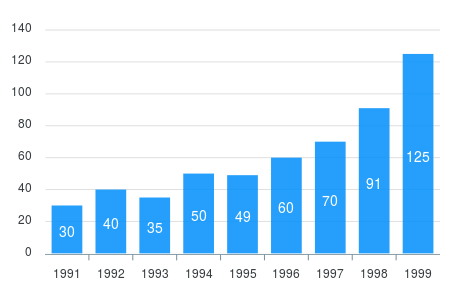
Once you have installed the library, you are ready to create a basic bar chart in vue.js. So, let's get started.
Create the template part of the Vue component which is a mix of HTML and custom tags. The \<apexchart> tag which you see below is the component which we will declare in the script part of the Vue component.
<template>
<div>
  <apexchart width="500" type="bar" :options="options" :series="series"></apexchart>
</div>
</template>
As you can see in the above template, the ApexCharts holds 4 props. Now, let's jump to the JavaScript part.
Let's write the script part of the Vue component. We will import VueApexCharts if we haven't imported already and then define it globally using Vue.component() function so you can use it anywhere.
In the first example, we will start with a very basic bar chart.
import VueApexCharts from 'vue-apexcharts'

var app = new Vue({
  el: '#appl',
  data: function() {
    return {
      options: {
        chart: {
          id: 'vuechart-example'
        },
        xaxis: {
          categories: [1991, 1992, 1993, 1994, 1995, 1996, 1997, 1998]
        }
      },
      series: [{
        name: 'series-1',
        data: [30, 40, 45, 50, 49, 60, 70, 91]
      }]
    }
  }
});
This will render the following chart. To read more about the options you can configure in a bar chart, check out this plotOptions.bar configuration.
Next, we create a simple line chart. To do so, just change the type property in the component props
Line Chart
  <template>
    <div>
      <apexchart width="500" type="line" :options="options" :series="series"></apexchart>
    </div>
  </template>
This will generate the following line chart. 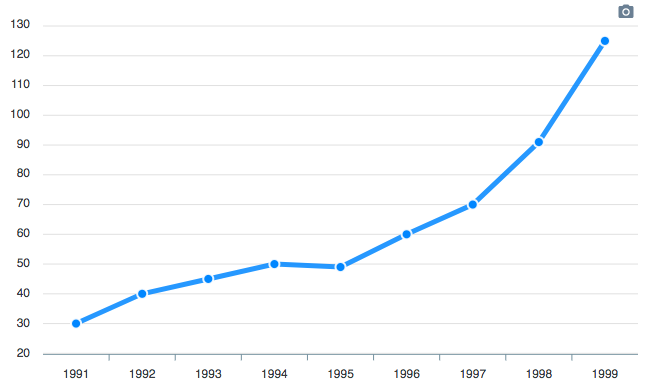
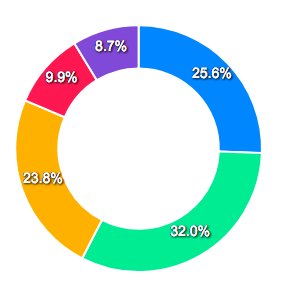
Now, we will create a donut chart with minimal configuration. To do so, change some of the options
Donut Chart
The donut chart accepts a single dimensional series array unlike other chart types. Try the below code.
  <template>
    <div>
      <apexchart width="380" type="donut" :options="options" :series="series"></apexchart>
    </div>
  </template>
var app = new Vue({
  el: '#appl',
  data: function() {
    return {
      options: {},
      series: [44, 55, 41, 17, 15]
    }
  }
});
And this is how the rendered donut chart will look like with the help of the above code.
In the next section, we will see how we can update the rendered chart dynamically
Updating Vue Chart Data
Updating your Vue chart data is simple. You just have to update the series props which you pass to the \<apexchart> component and it will automatically trigger event to update the chart.
We will see an example below updating the chart data with some random series to illustrate the point.
import VueApexCharts from 'vue-apexcharts'

export default {
 name: 'Vue Chart',
 data: function () {
  return {
   chartOptions: {
    chart: {
      id: 'vuechart-example',
    },
    xaxis: {
      categories: [1991, 1992, 1993, 1994, 1995, 1996, 1997, 1998],
    },
   },
   series: [{
    name: 'Vue Chart',
    data: [30, 40, 45, 50, 49, 60, 70, 81]
   }]
  }
 },
 methods: {
  updateChart() {
   const max = 90;
   const min = 20;
   const newData = this.series[0].data.map(() => {
     return Math.floor(Math.random() * (max - min + 1)) + min
   })
   // In the same way, update the series option
   this.series = [{
    data: newData
   }]
  }
 }
}
As you can see in the example above, by just changing the props, we trigger the update event of ApexCharts.
Updating Vue Chart Options
You can also change chart options apart from changing chart data too. For eg, you may change the theme of the chart or change the legend position without affecting the data. See an example below which changes the theme of the chart.
methods: {
 updateTheme(e) {
  this.chartOptions = {
   theme: {
     palette: 'palette2'
   }
  }
 }
}
More Charts Examples?
There are several other charts which can be created by changing a couple of options. The major configuration has to be done in the options property of ApexCharts component and rest will fall into places.
View Vue Chart Demos